Free ToolsWindows

इस Tool से Windows में Files को Year-Month Wise Organize कर सकते हैं

Date Modified के आधार पर personal files को automatically Year > Month folders में organize करने वाला free Windows tool.

Package size: 756 KB.
💡
Quick Answer

यह Free Tool उसी folder की top-level personal files को उनके Date Modified के अनुसार Year > Month folders में organize करता है। Safe तरीके से इस्तेमाल करने का पूरा step-by-step तरीका नीचे देखें।

Step-by-Step Guide

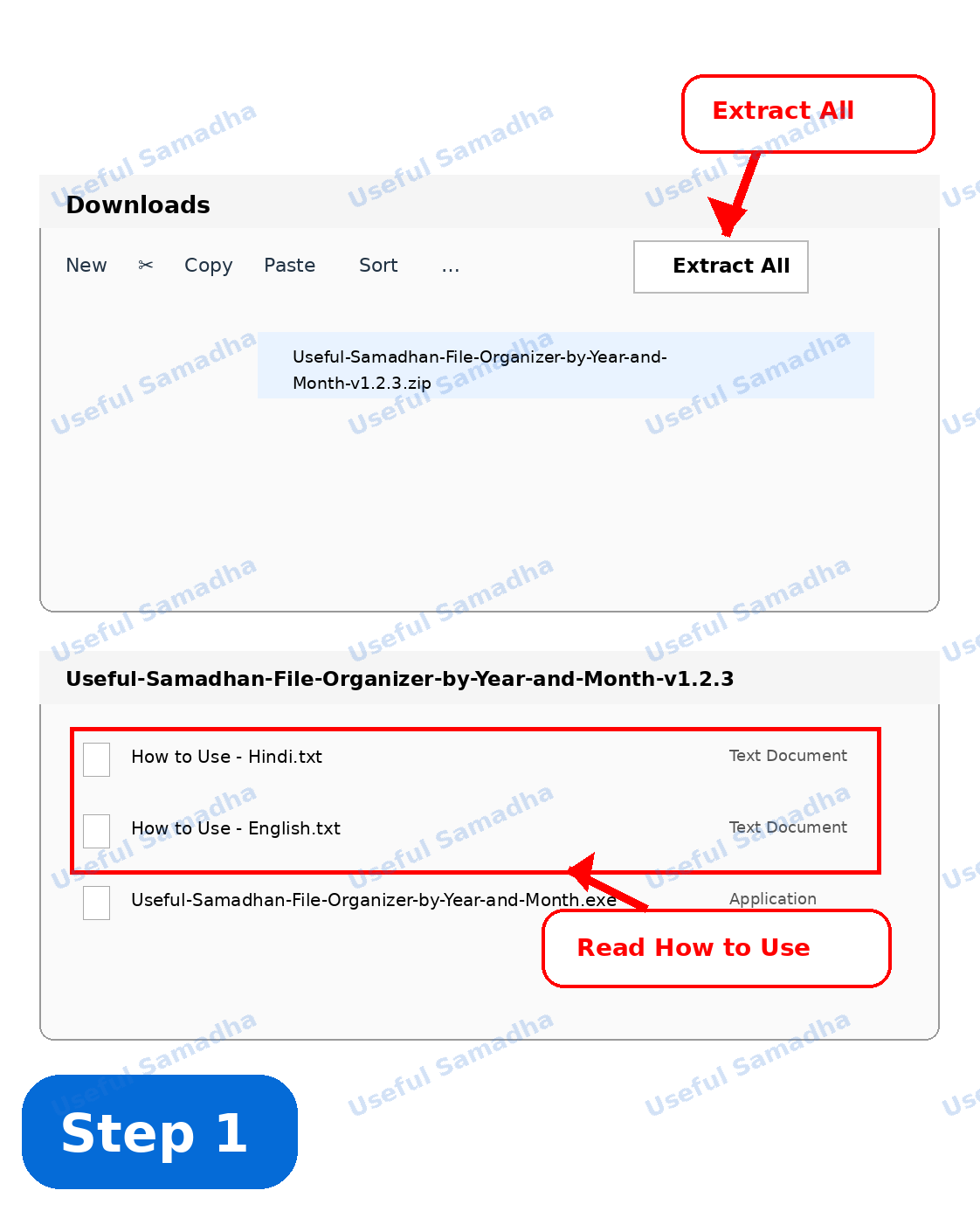
Step 1: Year-Month Tool ZIP को Extract All करके How to Use guide पढ़ना

Step 1

Tool Download करें और ZIP Extract करें

Package download करके ZIP extract करें। Extract करने के बाद Hindi/English How to Use में से अपनी पसंद की language वाली guide पहले पढ़ लें। इसके बाद EXE को उस personal-files folder में रखें जिसकी top-level files को organize करना है।

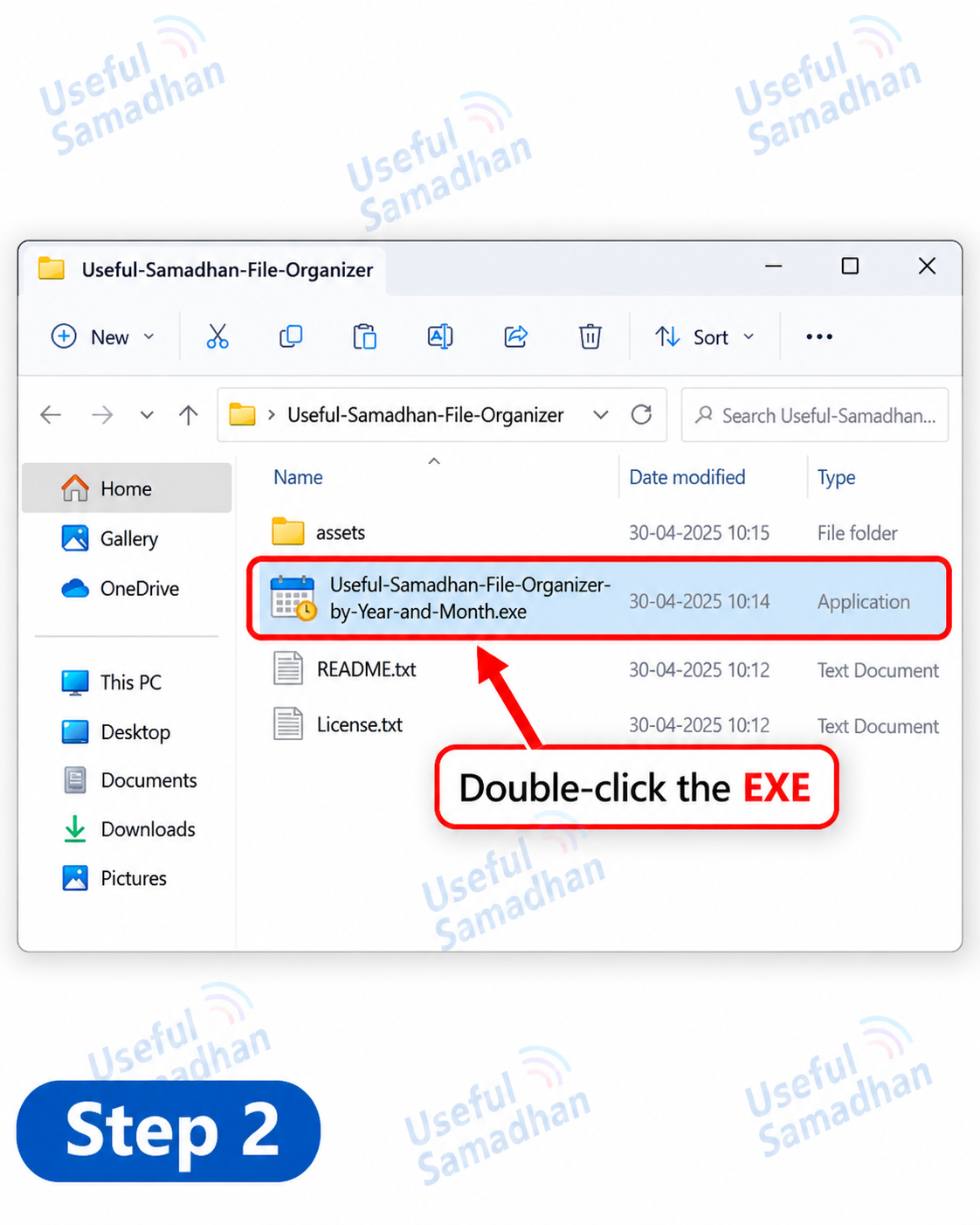
Step 2: File Organizer by Year and Month EXE पर Double-click करना

Step 2

EXE पर Double-click करें

Tool EXE पर double-click करके app open करें।

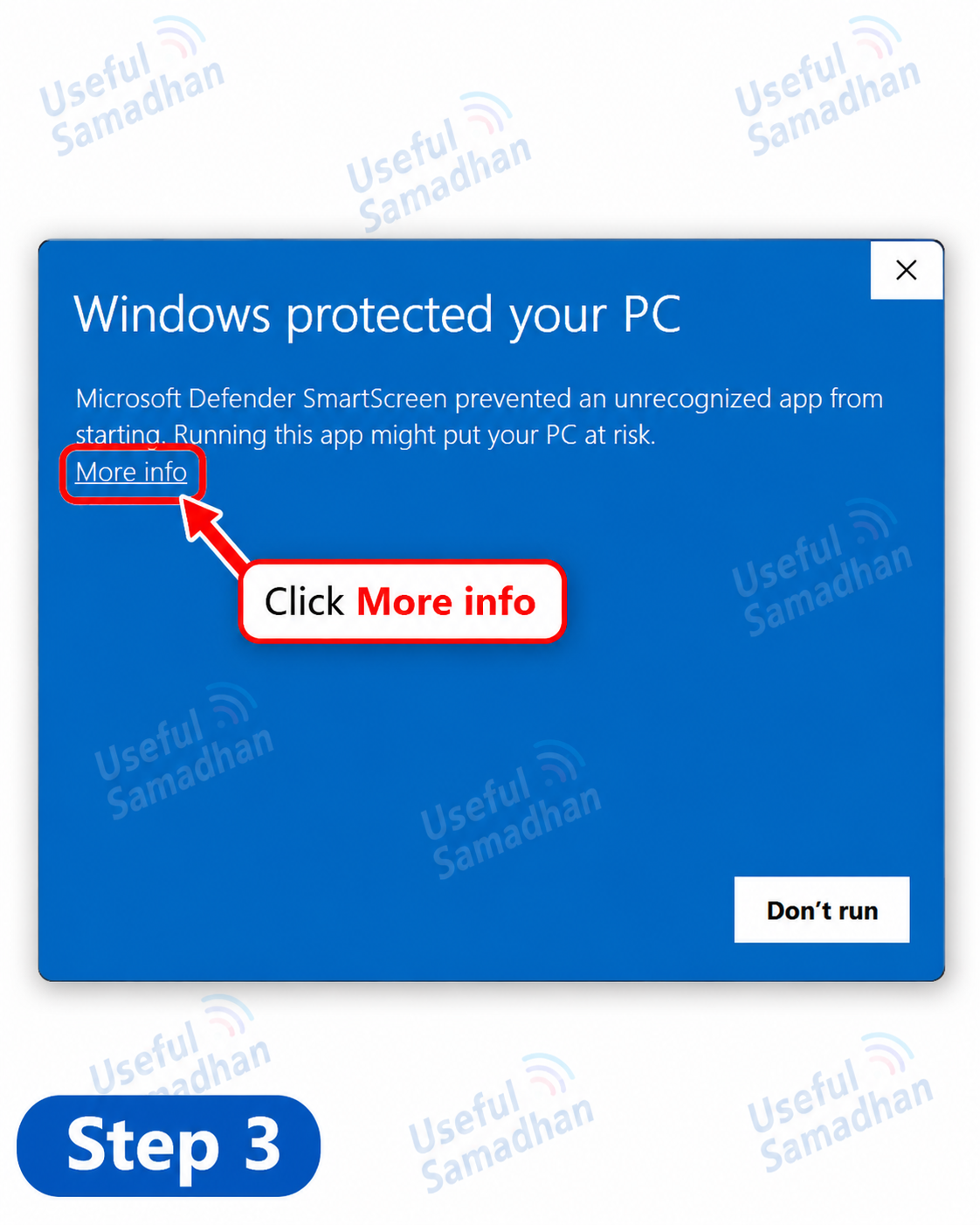
Step 3: Windows Defender SmartScreen में More info चुनना

Step 3

SmartScreen आए तो More info देखें

Windows Defender SmartScreen नए या unsigned app पर warning दिखा सकता है। अगर आपने यह Tool Useful Samadhan की official website से download किया है और आगे बढ़ना चाहते हैं, तो More info पर click करें।

किसी अन्य या unknown source से मिली EXE के लिए SmartScreen warning bypass करने की सलाह नहीं दी जाती। Source पर भरोसा न हो तो app बंद कर दें।

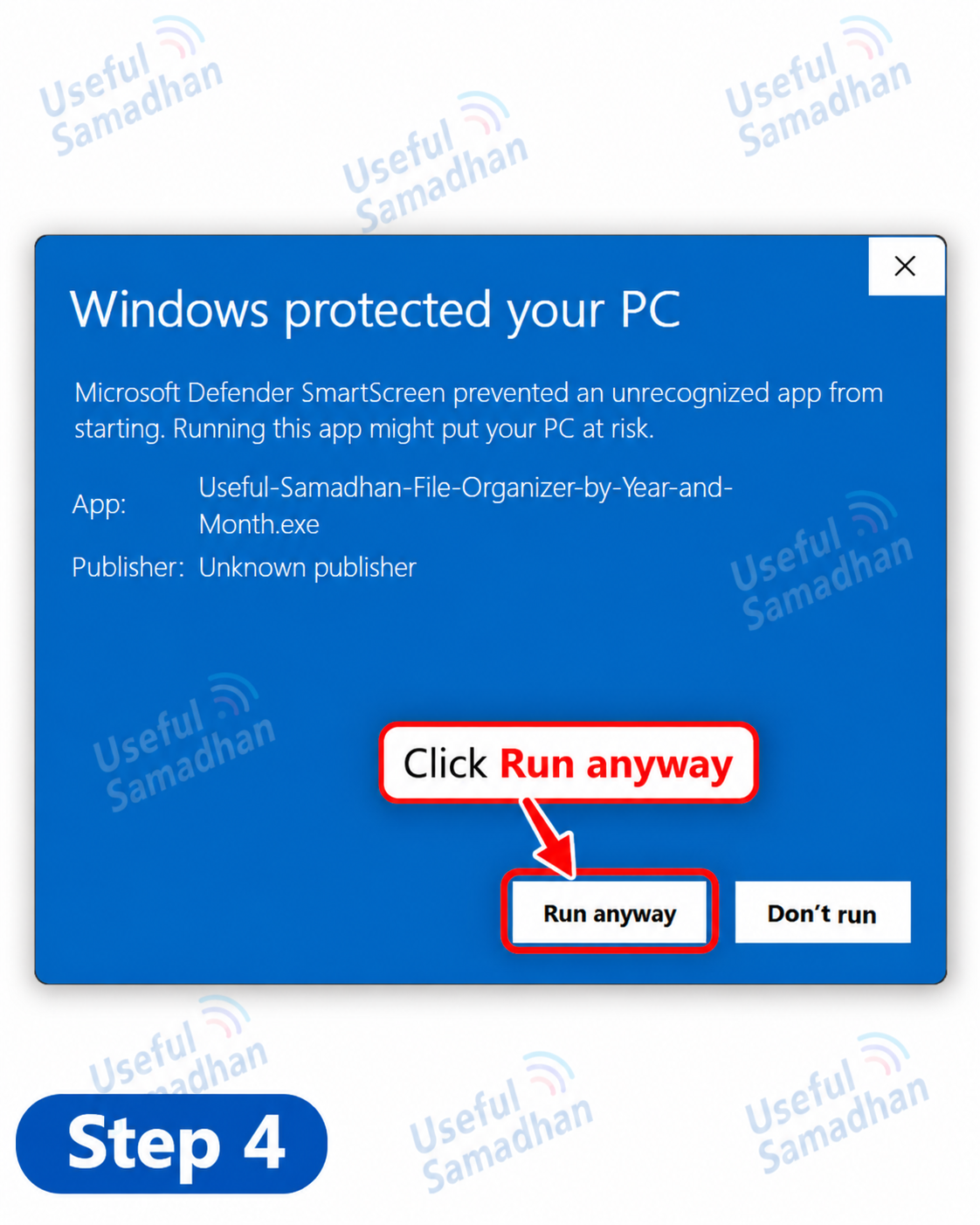
Step 4: SmartScreen में Run anyway पर Click करना

Step 4

Run anyway पर Click करें

More info पर click करने के बाद Run anyway दिखाई देगा। अगर यह वही Tool है जिसे आपने Useful Samadhan की official website से download किया है और आप आगे बढ़ना चाहते हैं, तो Run anyway पर click करें।

Step 5: Important Please Read safety section पढ़ना

Step 5

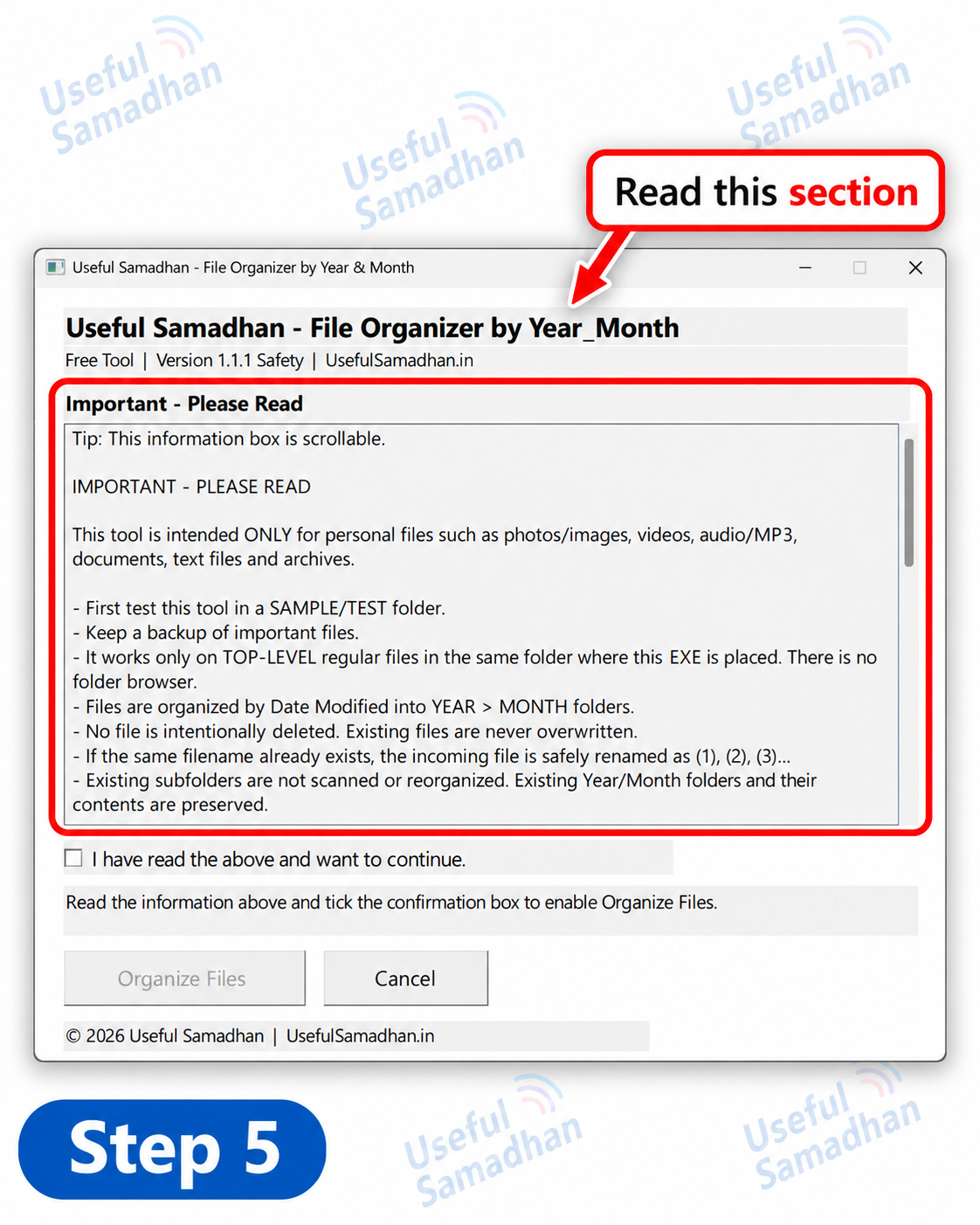
Important - Please Read section पढ़ें

Tool खुलने के बाद scrollable Important - Please Read section को पहले पूरा पढ़ लें। इसमें Tool का scope, safety rules और file-organization behavior दिया गया है। App में Current Folder/path दिखाई दे तो उसे भी ध्यान से verify करें।

Step 6: Confirmation checkbox Tick करना

Step 6

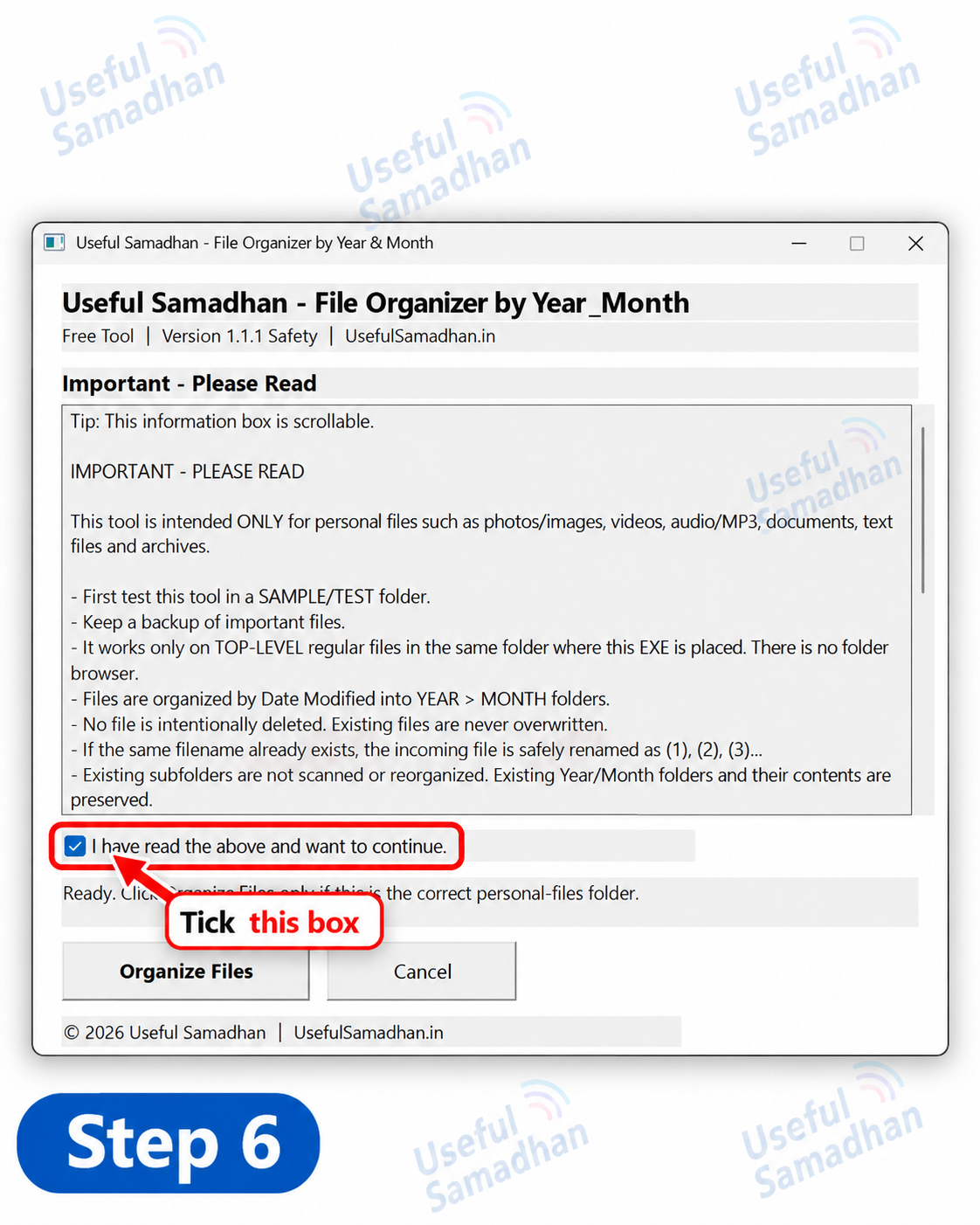
Confirmation Checkbox Tick करें

Information पढ़ने के बाद I have read the above and want to continue. पर tick करें। Allowed personal-files folder होने पर Organize Files button enable होगा।

Step 7: Blocked location में Safety Block message देखना

Step 7

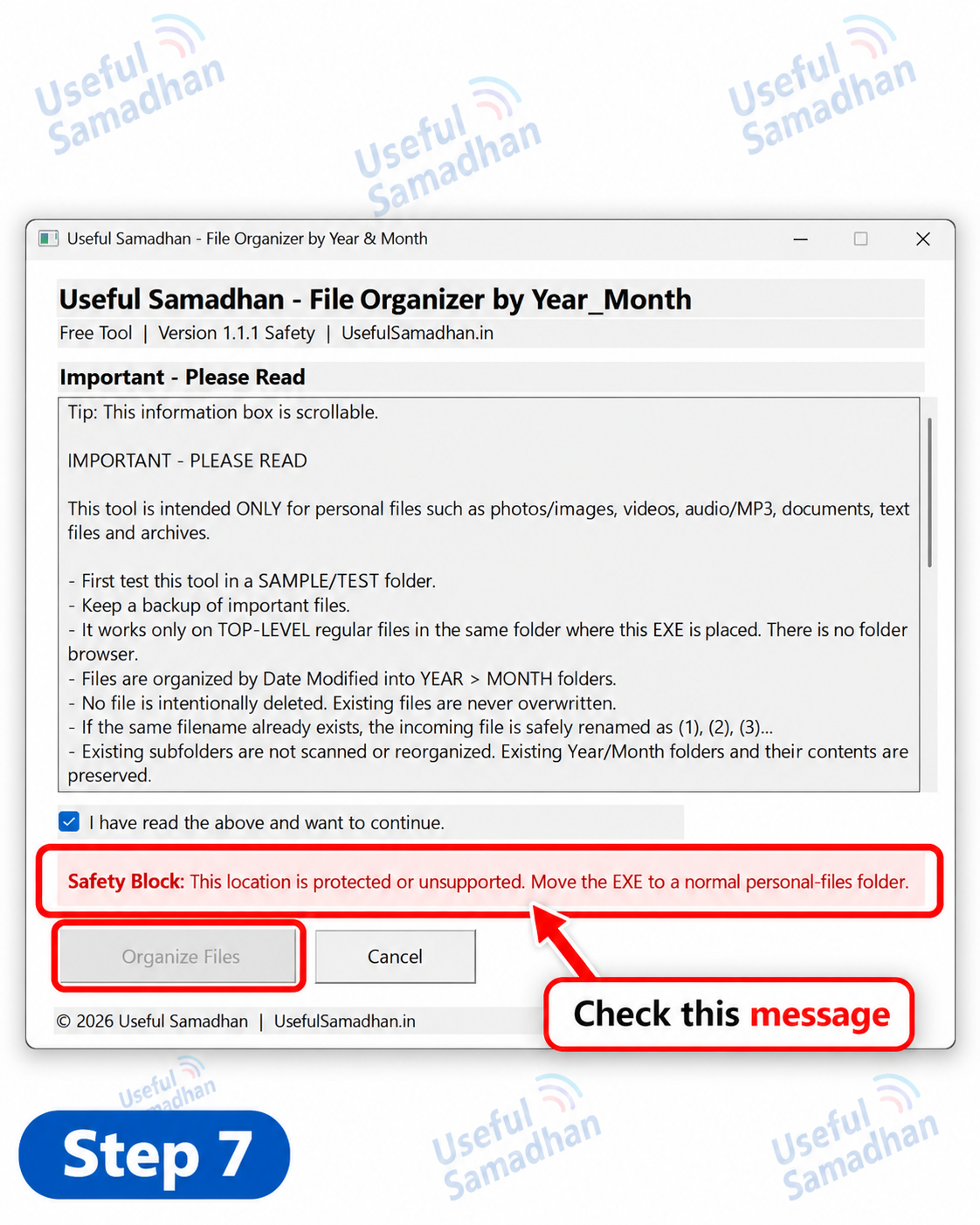
Organize Files Disabled रहे तो Safety Message देखें

अगर checkbox tick करने के बाद भी Organize Files disabled है और Safety Block message दिखाई देता है, तो current folder ऐसी protected/blocked location है जहाँ Tool intentionally file organization नहीं करेगा। EXE को किसी normal personal-files folder में रखें। Block bypass करने की कोशिश न करें।

Step 8: Files का Before और Year Month folders में organized After result

Step 8

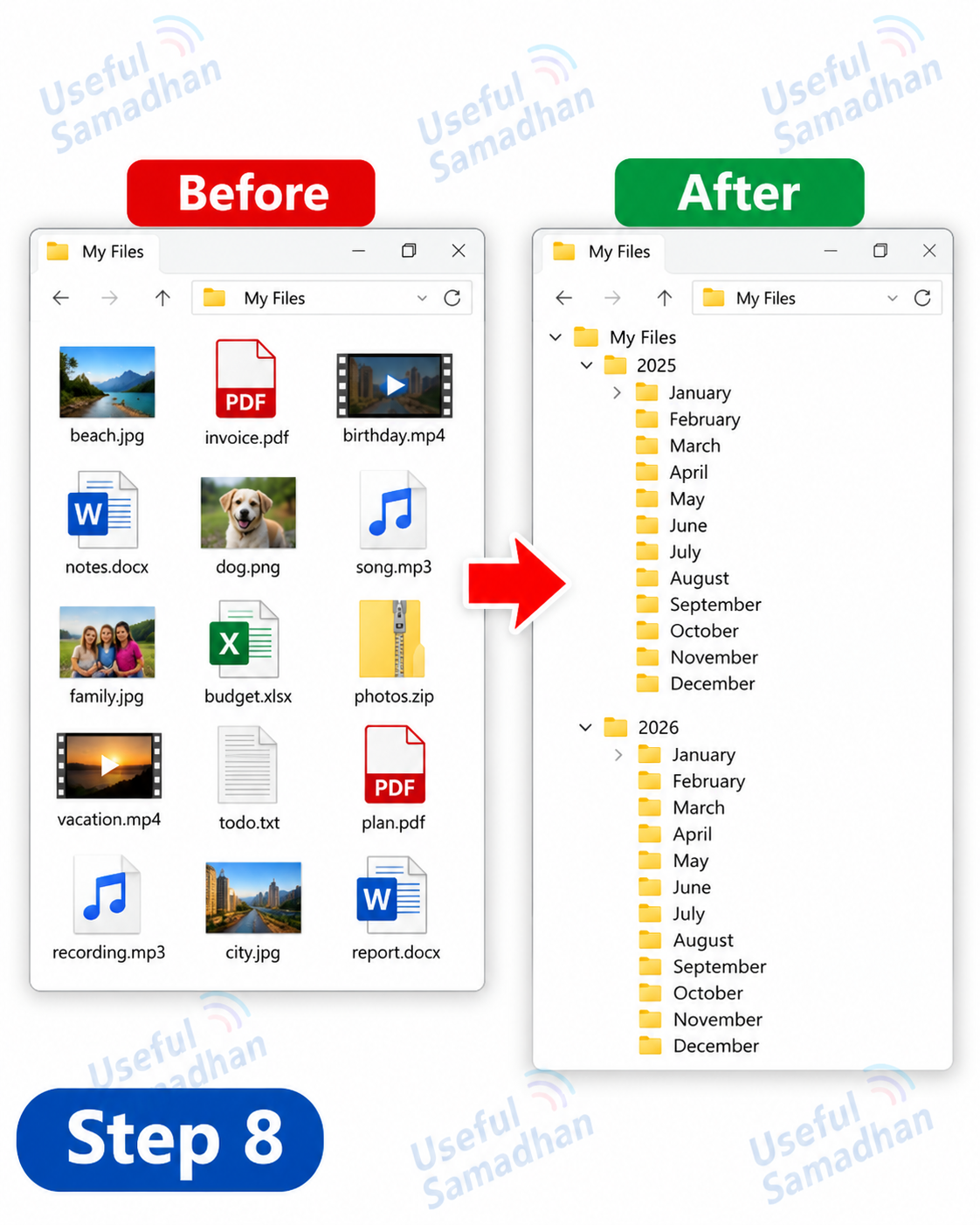
Organize Files पर Click करें और Result देखें

Folder सही है और button enabled है तो Organize Files पर click करें। Files उनके Date Modified के अनुसार YEAR > MONTH > FILES structure में organize होंगी। Supplied Step 8 visual Before/After result दिखाता है।

ध्यान रखें / Safety & Compatibility

  • पहले SAMPLE/TEST folder में copied files के साथ Tool test करें।
  • Important files का backup रखें।
  • Tool सिर्फ normal personal files के लिए use करें।
  • EXE जिस folder में है, उसी folder की top-level regular files process होती हैं।
  • Windows/system/software/application folders में Tool न चलाएँ; unsafe locations के लिए safety blocks लगाए गए हैं, लेकिन सही folder चुनना user की भी जिम्मेदारी है।
  • Organize operation के दौरान app बंद, Windows shutdown या storage disconnect न करें।
  • Tested on: Windows PC (Windows 11).

किन Files को Organize किया जा सकता है?

Images Videos Audio Documents / PDFs / Text Files Archives Other Normal Personal Files

Hidden, System, linked/reparse और incomplete/temp files safety के लिए skip हो सकती हैं। Existing subfolders scan या reorganize नहीं होते।

Frequently Asked Questions

Tool Year और Month तय करने के लिए कौन-सी date use करता है?

File की Date Modified के आधार पर Year और Month तय किए जाते हैं।

क्या यह Tool files delete करता है?

Tool का intended behavior files को delete करना नहीं है। यह supported personal files को Year > Month folders में move/organize करता है। फिर भी important data का backup रखें।

Same filename की file पहले से मौजूद हो तो क्या होगा?

Existing file overwrite नहीं की जाती। Incoming file को (1), (2), (3)... जैसे suffix के साथ safely rename किया जाता है।

क्या existing subfolders की files भी organize होंगी?

नहीं। Tool केवल उसी folder की top-level regular files process करता है। Existing subfolders और उनके अंदर की files untouched रहती हैं।

Checkbox tick करने के बाद भी Organize Files disabled क्यों है?

Current location safety check में blocked/unsupported हो सकती है। EXE को normal personal-files folder में रखें और वहाँ दोबारा check करें।

Windows “Unknown publisher” क्यों दिखाता है?

Tool paid code-signing certificate से digitally signed नहीं है, इसलिए Windows Defender SmartScreen इसे new/unrecognized app के रूप में दिखा सकता है। आगे तभी बढ़ें जब Tool Useful Samadhan की official website से download किया गया हो और आप source से संतुष्ट हों।

क्या existing Year/Month folders दोबारा reorganize होंगे?

नहीं। Existing subfolders scan या reorganize नहीं किए जाते; उनका existing content preserve रहता है।

क्या Tool इस्तेमाल करने के लिए internet चाहिए?

Download होने के बाद file organization local Windows PC पर होती है; organize करने के लिए internet connection की जरूरत नहीं है।